Guide
How to transcribe an interview on iPhone
An interview transcript is only useful if you can trust it. You need the exact words, a clear record of who said them, and a way back to the audio when a quote matters. This guide covers the whole path: consent and setup, recording, on-device transcription, speaker labels, and pulling quotes.
- Tell the interviewee how the recording will be used before you start.
- Record inside the app; transcription runs on the iPhone afterwards.
- Rename the anonymous speaker labels to interviewer and guest.
- Search a keyword, tap the result, and confirm the quote in the audio.
Before the interview: consent and setup
Recording rules vary by country, state, and workplace. Some places require everyone to agree; others allow one participant to record. Ask before you start, and explain how the recording will be used:
“I'd like to record this interview so I can quote you accurately. I'll transcribe it on my iPhone, and the audio stays on the device unless we agree to share it. Is that okay?”
A few minutes of preparation prevents most problems:
- Download the speech model before the interview so you are not waiting on a network.
- Charge the phone, or keep it connected to power for a long session.
- Choose a quiet room and avoid a table next to a window or air conditioner.
- Record a 30-second test and play it back before the real conversation.
Record the interview
Place the phone on the table between you and the interviewee, slightly closer to the person you most need to hear. One device in the middle is usually better than passing a phone back and forth.
- Start the recording before the first question.
- Avoid speakerphone and earbuds; use the phone's microphone directly.
- Ask the interviewee to say their name and role once at the start; it gives you an anchor for speaker labels.
- When a key point arrives, add a mark so you can find it later without scrolling.
Transcribe on the device
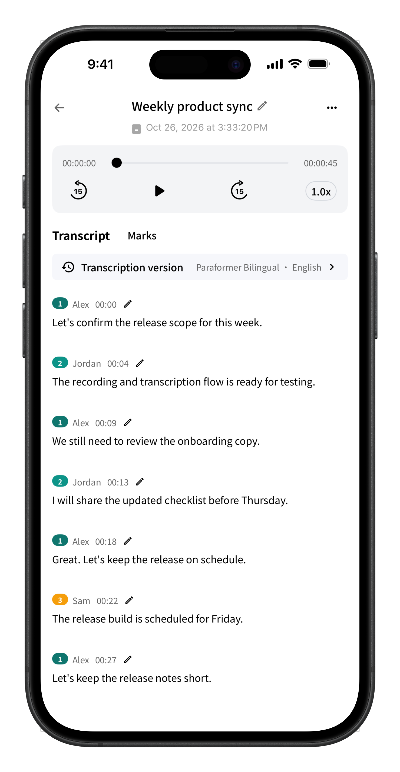
When the interview ends, transcribe the recording in the app. The speech recognition model runs on the iPhone, so the audio does not need to be uploaded. The time it takes depends on the recording length and the device; a long interview on an older phone can take a while.
The result is a transcript with timestamps. It is a draft, not a certified record: names, technical terms, and quiet passages may need correction.
Label the interviewer and the guest
Speaker separation groups the transcript into anonymous labels such as Speaker 1 and Speaker 2. Rename them to the interviewer and the interviewee, merge groups that belong to the same person, and adjust any segment that landed on the wrong speaker. Clear labels make the transcript readable and let you search by speaker later.
Pull quotes without guessing
When you need a quote for an article, report, or research note:
- Search the transcript for a distinctive keyword. VIP users can search by keyword and speaker.
- Tap the result to jump back to that moment in the audio.
- Listen once and confirm the exact wording, including pauses and qualifiers.
- Copy the quote from the transcript, then correct punctuation if your publication style requires it.
The audio is the source of truth. The transcript is the index that gets you there quickly.
Write up and share
Keep the recording and transcript together until your notes are finished. Transcripts can be edited, exported as Word documents, or the original audio can be shared through the system share sheet. If the interview contains sensitive information, share only the excerpt you need and agree on retention with the interviewee.
Privacy and the interview record
Scribo records and transcribes on the iPhone. Recordings, transcripts, and speaker labels stay in the app's local storage by default; the core transcription path does not upload them to Scribo's servers. Files leave the device only when you choose to export or share them.
That reduces the number of places the interview can be exposed, but it does not replace consent, confidentiality agreements, or your organization's research policy.
Frequently asked questions
Can I transcribe an interview recorded outside the app?
The current iPhone app records interviews inside the app and transcribes those recordings. It does not import existing audio files, so start the recording in Scribo when the interview begins.
How long does it take to transcribe an interview?
It depends on the recording length and the device. Transcription is compute-intensive, so a long interview on an older iPhone takes longer. Start the transcription after the interview, keep the phone charged, and let it finish before editing.
Does Scribo separate the interviewer and the guest?
Yes. Speaker separation groups the transcript into anonymous labels such as Speaker 1 and Speaker 2. You can rename the labels to the interviewer and guest, adjust a segment, or merge two groups that belong to the same person.
How do I find an exact quote in the transcript?
VIP users can search the transcript by keyword and speaker. Tap a result to jump back to that point in the audio and confirm the wording before publishing it.
Is the interview recording uploaded to a server?
Scribo's core transcription path does not upload recordings or transcript text to its servers. The audio and transcript stay on the device until you export or share them.
Get started
Record your next interview on-device
Free download with 60 minutes of transcription included. No account required to start.