Guide
Meeting transcription on iPhone: a complete guide
After a meeting, the useful artifact is not an audio file buried in your library. It is a record you can search, navigate, and share. Here is the complete workflow with Scribo, from preparation to archiving.
- Before recording, confirm consent, the model, storage, and battery.
- A failed transcription does not delete the recording; you can retry.
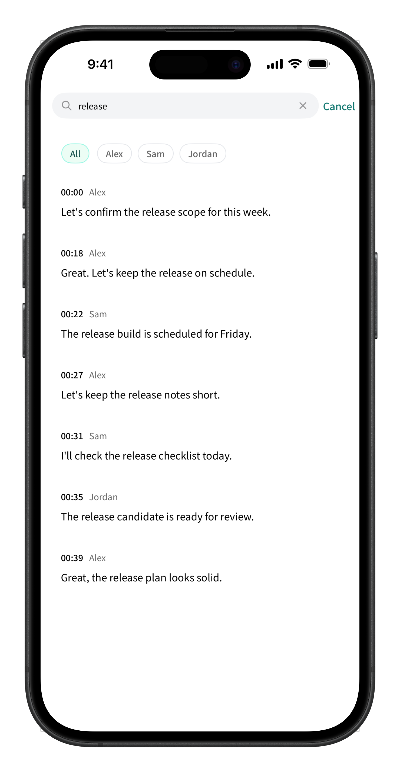
- Full-text search jumps straight back to the matching audio.
Before the meeting
- Get consent. Confirm that everyone present knows about the recording and agrees to it. This is the basic prerequisite.
- Prepare the model. Download and verify the local speech recognition model first, so the meeting does not start with a wait.
- Check storage and battery. Long meetings take up storage space. Leave enough room and keep the battery charged.
- Choose a position. Place the phone in the center of the table, near the main speaker, away from air vents and fans.
Step 1: Record
Start recording inside the app. You can add marks during the recording to find key moments later. Keep the phone in one place instead of moving it around; this reduces handling noise and sudden volume changes.
Step 2: Transcribe on the device
Start transcription after the recording ends. Core recognition runs on the device and does not upload the recording. A failed transcription does not delete the recording; check the model status, storage, and battery, then try again. Long recordings take time, so start them when the phone is otherwise idle.
Step 3: Clean up speakers and text
- Rename speakers, for example “Host”, “Client”, or “Consultant”.
- Merge speaker groups that were split by mistake, or split groups that were merged.
- Fix obvious recognition errors and add proper nouns and abbreviations.
- For long meetings, organize sections by topic so they are easier to review.
Step 4: Search and replay
Full-text search is a VIP benefit. Enter a keyword, tap a result, and jump back to that point in the recording to check the exact words and tone. It is faster than dragging the progress bar and less likely to miss context.
Step 5: Share and archive
Export the cleaned transcript as a Word document, or send the original audio through the system share sheet. For sensitive meetings, confirm who will receive the file before sharing, and clean up local recordings you no longer need.
Five tips for better accuracy
- Shorten the distance. The closer the phone is to the speaker, the more stable recognition becomes.
- Reduce background noise. Turn off fans and stay away from windows and corridors.
- Avoid overlapping speech. The host can invite people to speak in turn.
- Explain the agenda and proper nouns beforehand. It helps your review and reduces recognition surprises.
- Record a one-minute test first. Confirm volume, position, and device state before an important meeting.
Frequently asked questions
How long can a meeting recording be?
The available length depends on device storage and battery. For long meetings, connect to power and leave enough free storage before you start.
The transcription failed. Is the recording still there?
Yes. A failed transcription does not delete the local recording. Check the model status, storage, and battery, then try again.
Can it tell different speakers apart?
Yes. Scribo separates speakers within a single meeting and lets you rename, adjust, or merge speaker groups.
Do I need an account to use it?
No. You can start right after downloading. The free download includes 60 minutes of transcription, and more capabilities are unlocked with a VIP subscription.
Get started
Turn your next meeting into searchable text
Free download with 60 minutes of transcription included. No account required to start.